

Download Homebrew – Free Open‑Source Package Manager for macOS & Linux
Overview
Homebrew is a free, open‑source software package management system that has become the de‑facto standard for developers on macOS and Linux. Created by Max Howell and written in Ruby, Homebrew simplifies the installation, upgrade, and removal of command‑line tools and graphical applications. By abstracting the often‑complex steps of downloading source code, resolving dependencies, and compiling binaries, Homebrew lets you focus on development rather than system administration.
Its design follows the “principle of least astonishment,” meaning the commands behave in an intuitive way for both newcomers and seasoned power users. The core of Homebrew revolves around “formulae”—Ruby scripts that describe how to build a piece of software from source, as well as “bottles,” which are pre‑compiled binary packages for rapid installation. Because the entire project is open source, you can inspect, modify, or extend it to fit unique workflow requirements.
Homebrew also powers related tools like Homebrew Cask, which brings GUI applications under the same simple command‑line interface. Whether you need the latest version of Python, a specific version of Node.js, or niche utilities such as ffmpeg, Homebrew offers a curated, secure, and regularly updated repository that reduces the friction of manual installations.
Key Features That Make Homebrew Stand Out
- Simple Command‑Line Interface: Install packages with a single
brew installcommand. - Extensible Formulae: Write or edit Ruby‑based formulae to customize build options.
- Bottles (Pre‑Compiled Binaries): Speed up installations by using ready‑made binaries when available.
- Homebrew Cask Integration: Manage macOS GUI applications, fonts, and plugins alongside CLI tools.
- Dependency Management: Automatic resolution and installation of required libraries.
- Version Control: Pin specific versions of packages or switch between multiple versions easily.
- Community‑Driven Repository: Thousands of formulae maintained by a global community of contributors.
- Secure Updates: Cryptographically signed formulae and bottles ensure integrity.
- Cross‑Platform Support: Works on macOS, Linux, and even Windows Subsystem for Linux (WSL).
- Minimal System Impact: Installs everything under
/usr/local(or a custom prefix) without polluting system directories.
These features combine to create a tool that is both powerful for advanced developers and approachable for beginners. The clear separation between source builds and pre‑compiled bottles means you can prioritize speed or customization based on your project’s needs. Homebrew’s integration with Git also provides transparent change logs, making it easy to audit updates or roll back to previous versions. Additionally, the vibrant community constantly contributes new formulae, security patches, and performance improvements, ensuring that Homebrew remains up‑to‑date with the latest software trends.
Installation, Usage & Compatibility
Step‑by‑Step Installation
Installing Homebrew is designed to be a single line of code. Open your terminal and run:
/bin/bash -c "$(curl -fsSL https://raw.githubusercontent.com/Homebrew/install/HEAD/install.sh)"
The script automatically detects your operating system, clones the Homebrew Git repository into /usr/local (or /home/linuxbrew/.linuxbrew on Linux), and sets up the necessary directories and permissions. On macOS, the installer may request your password to adjust the ownership of /usr/local so that you, the user, have write access. After the installation finishes, you should add Homebrew to your shell’s PATH:
echo 'eval "$(/opt/homebrew/bin/brew shellenv)"' >> ~/.zprofile
eval "$(/opt/homebrew/bin/brew shellenv)"
Once configured, verify the installation with brew doctor, which checks for common issues and suggests fixes.
Basic Usage Commands
The core workflow revolves around a few simple commands:
brew search– Find packages.brew install– Install a formula or cask.brew upgrade– Update all installed packages.brew uninstall– Remove a package.brew list– List all installed formulae.brew info– Show details, dependencies, and version info.
Operating System Compatibility
Homebrew officially supports macOS (10.14 Mojave and later) and most popular Linux distributions, including Ubuntu, Debian, Fedora, and Arch. For Windows users, Homebrew runs seamlessly inside the Windows Subsystem for Linux (WSL) with the same commands and behavior as native Linux installations. The package manager automatically detects the underlying OS and adapts its installation path and environment variables accordingly.
Because Homebrew lives in user‑space, it does not interfere with system‑provided packages managed by apt, yum, or macOS’s native pkgutil. This isolation ensures that you can experiment with bleeding‑edge tools without risking the stability of the host system. Moreover, the ability to set a custom prefix using the --prefix flag gives power users complete control over where software is installed, making Homebrew suitable for CI pipelines, container images, and isolated development environments.
Pros, Cons & Frequently Asked Questions
Pros
- Free and open source – no hidden fees.
- Extremely easy installation and minimal setup.
- Vast library of formulae covering development tools, utilities, and GUI apps.
- Secure updates with cryptographic verification.
- Cross‑platform support, including macOS, Linux, and WSL.
- Active community ensures rapid bug fixes and new packages.
Cons
- Relies on Ruby; occasional compatibility issues with newer Ruby versions.
- Initial setup may require manual permission changes on some systems.
- Large number of formulae can be overwhelming for beginners.
- Binary “bottles” not available for every package, leading to longer source builds.
Frequently Asked Questions
-
Is Homebrew really free?
Yes. Homebrew is released under the open‑source MIT license, which allows anyone to use, modify, and distribute it at no cost.
-
Can I use Homebrew on Windows?
Homebrew does not run natively on Windows, but you can install it inside the Windows Subsystem for Linux (WSL) and enjoy the same functionality as on a Linux host.
-
How does Homebrew handle updates?
Running
brew updaterefreshes the formula repository, whilebrew upgradeinstalls the latest versions of all installed packages. Updates are signed and verified for security. -
What is the difference between a formula and a bottle?
A formula is a Ruby script that tells Homebrew how to compile software from source. A bottle is a pre‑compiled binary version of that formula, allowing faster installation without compilation.
-
Can I create my own Homebrew formula?
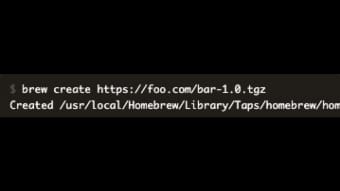
Absolutely. Since Homebrew is open source, you can write custom formulae in Ruby, test them locally, and even submit them to the official repository via a pull request.
Conclusion & Call to Action
In the ever‑evolving landscape of development tools, Homebrew stands out as a reliable, secure, and community‑driven package manager that bridges the gap between simplicity and power. Whether you are a student learning to code, a professional developer juggling multiple language runtimes, or a system administrator looking for a consistent way to deploy utilities across macOS and Linux machines, Homebrew provides the flexibility and robustness you need. Its open‑source nature ensures continuous improvement, while its intuitive command‑line interface keeps the learning curve shallow.
Ready to streamline your software installations and keep your development environment up to date? Download Homebrew now and experience the convenience of a single command solution. Remember to run brew doctor after installation to verify everything is set up correctly, and explore the vast catalog of formulae and casks to boost your productivity instantly.







